macOS
Get Deskctl Bridge running on your Mac.
Installation
Download
Download the Universal DMG from the GitHub Releases:
Deskctl.Bridge_x.x.x_aarch64.dmg - Works on Apple Silicon Macs
Deskctl.Bridge_x.x.x_x64.dmg - Works on Intel Macs
Install
- Open the DMG file
- Drag Deskctl Bridge to your Applications folder
Launch
Important: After installing, you must manually open Deskctl Bridge for it to start.
- Open Applications folder
- Double-click Deskctl Bridge
- The Deskctl Bridge icon will appear in your menu bar

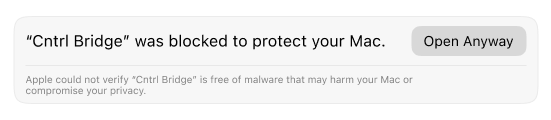
macOS Security Warning
Since Deskctl Bridge is not notarized with Apple, macOS will block it on first launch with a message like "Apple could not verify Deskctl Bridge is free of malware". This is normal for apps distributed outside the App Store.
To open the app:
- Try opening Deskctl Bridge normally — macOS will block it
- Go to System Settings → Privacy & Security
- Scroll down and click Open Anyway next to the Deskctl Bridge message
- Click Open in the confirmation dialog
You only need to do this once — macOS will remember your choice for future launches.
Configure Settings
After installation, click the menu bar icon to open the dashboard where you can:
- Change the server port
- Enable/disable features
- Configure autostart (toggle "Start on Login")
- Enable power management options (Shutdown, Restart, Sleep)
- Open the configuration file location
All settings are saved to ~/Library/Application Support/com.codewithevilxd.deskctl-bridge/config.json
Verify It's Working
Open your browser and go to:
http://localhost:9990/api/statusYou should see {"status":"ok"}.
macOS Permissions
Certain features require system permissions on macOS. The app will prompt you when these permissions are needed:
Required Permissions
- Media Control: When using
/api/media/*endpoints, macOS will prompt for Media & Apple Music access permission. Go to System Settings → Privacy & Security → Media & Apple Music to grant access. - Process Control: For/api/processes/focusand/api/processes/kill, you may need to grant Accessibility permissions. Go to System Settings → Privacy & Security → Accessibility and add Deskctl Bridge to the allowed apps list.
These permissions are only required if you plan to use these specific features.
macOS Features
- Menu Bar Integration: Lives in your menu bar (not the Dock)
- Universal Binary: Optimized for both Intel and Apple Silicon Macs
- Tray-Only App: No Dock icon, stays out of your way
- Full Feature Parity: All features work the same as Windows (except Hibernate, which macOS doesn't support)
- Native Performance: Fast and efficient with minimal resource usage
Hibernate on macOS
macOS does not have a separate hibernate command. Sleep on Mac automatically uses "Safe Sleep" which writes RAM to disk for power loss protection.